PulseKit in your community portal
The Workouts page lets clients use their existing PulseKit tracker in the same portal as your community. It appears beside Communities in the portal sidebar.
Set this up once for your account, not for each client. PulseKit is ready to connect; the Workouts page needs adding to your portal before clients can use it there.
What clients see
Clients sign in to your portal as usual, then select Workouts. Their existing tracker opens there, including Today, Habits, History, Food and Check-in. They do not need another PulseKit login or a new private link.
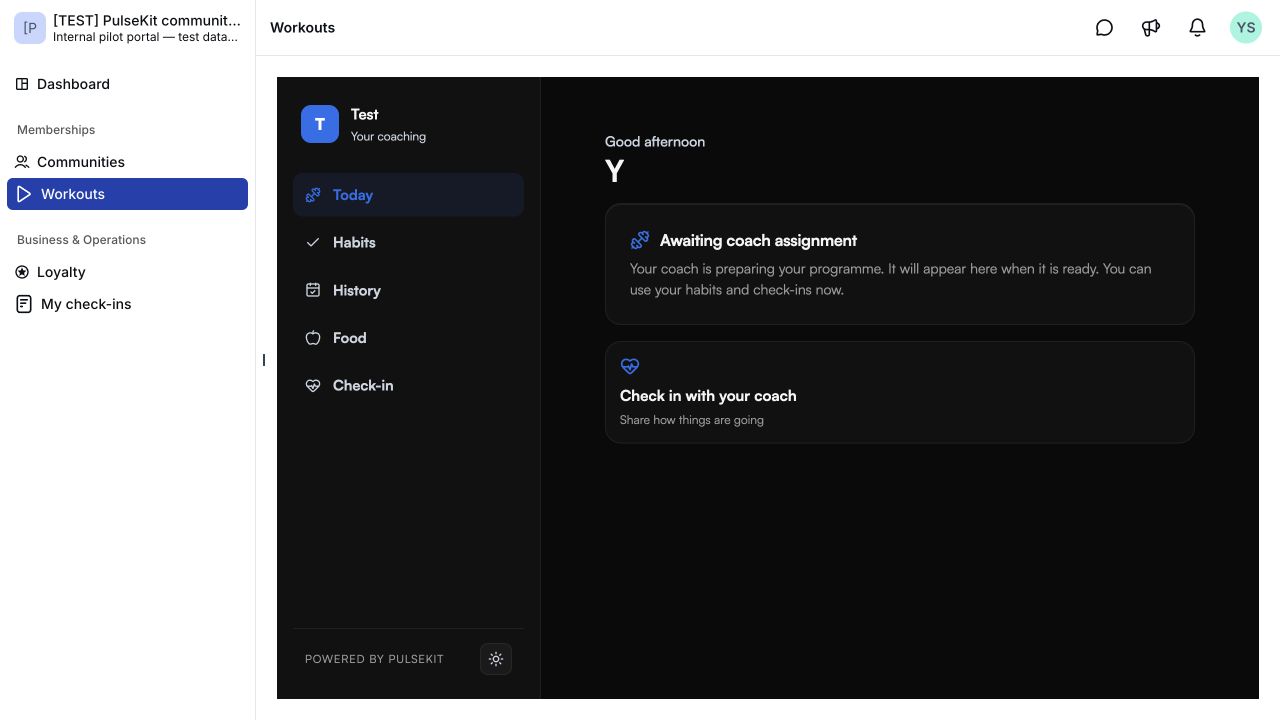
Example from our test portal. Workouts opens inside the portal, beside Communities.
Clients must use the same email for your portal and PulseKit. If they do not have an active PulseKit client record, the page shows an unavailable message. It does not create a client or assign a programme.
Private check-ins stay private. Sharing a reviewed summary with the community is a separate choice. See Check-ins and community.
Add Workouts to your portal
You need PulseKit connected in your Pulse account.
- Choose your portal. In Pulse, open Memberships > Client App Builder > My projects and choose your portal. If you cannot see Client App Builder, or do not have a portal yet, ask PulseKit support for help.
- Ask us to add Workouts. Give PulseKit support your account name and portal name. We reuse the existing Workouts page, which opens each client's own tracker. You do not need to copy client links or configure individual clients.
- Publish and check it. With support, publish the updated portal, then open Workouts as a test client. Use the same email in the portal and PulseKit. Check the tracker, reload, then visit Communities and return before inviting clients. Publishing makes the page available to signed-in portal members.
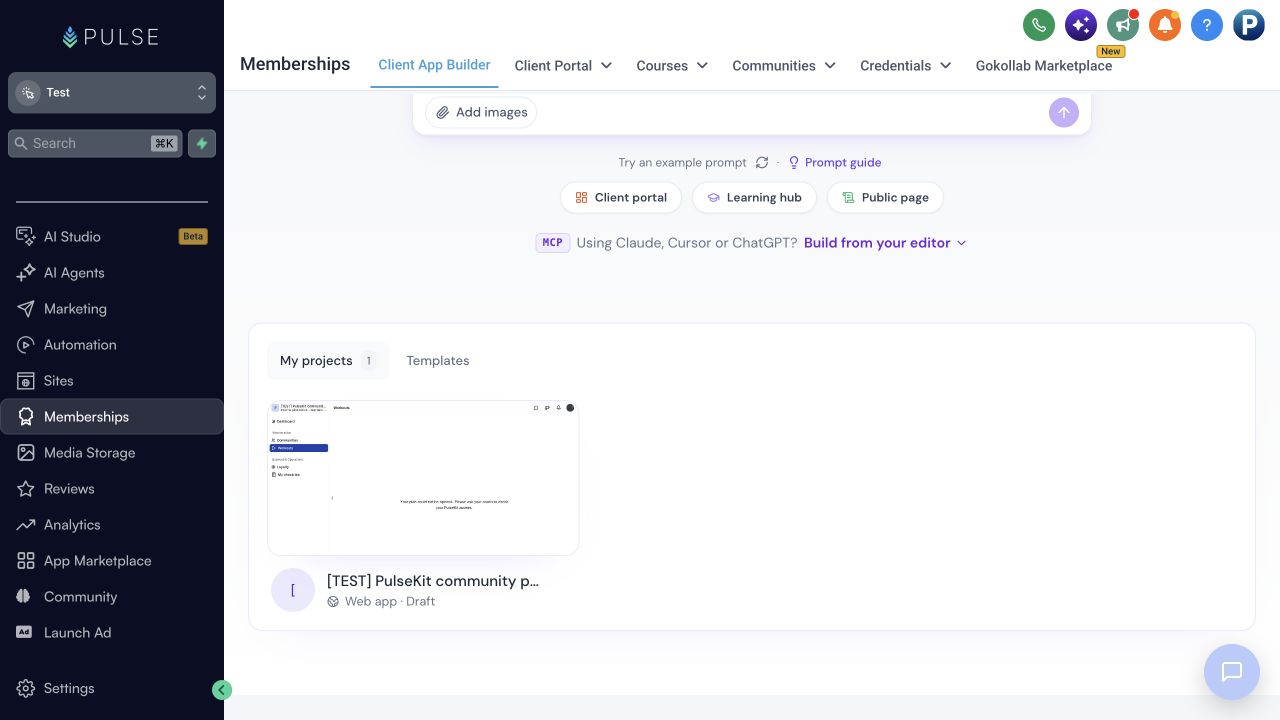
Choose your existing portal under My projects. You do not need to design another portal to add Workouts.
If your community uses the standard portal and it is not listed here, support must first create an App Builder portal for your account. It can reuse your existing members, courses and communities.
Can this be included in the snapshot?
Not yet. HighLevel keeps App Builder projects within each account, and does not currently support copying web apps between accounts. The Workouts page therefore needs adding once to each account. See HighLevel's current App Builder limits.
If a tracker does not open
- Confirm the client already exists and is active in PulseKit.
- Check that their portal and PulseKit emails match, and that only one active PulseKit client has that email in your account.
- Confirm the Workouts page is published in your portal and PulseKit is connected.
- Ask the PulseKit team to check the setup if the page still shows an unavailable message. Do not create another client or copy a different client's link to work around it.
Appearance and current limits
- Workouts is a portal page beside Communities, rather than a tab inside a community group.
- Clients can choose light or dark mode inside PulseKit. The surrounding portal has its own theme. See Client app guide.
- Installing the tracker on a home screen or enabling browser notifications may require opening PulseKit directly.
To remove Workouts from the portal menu, ask support to hide its sidebar item. Existing client trackers and saved data stay available in PulseKit.