Client app
Each client can use their own PulseKit app view from a phone or desktop browser. This is where they see what to do today and record their progress. It is branded with your business name and colour.
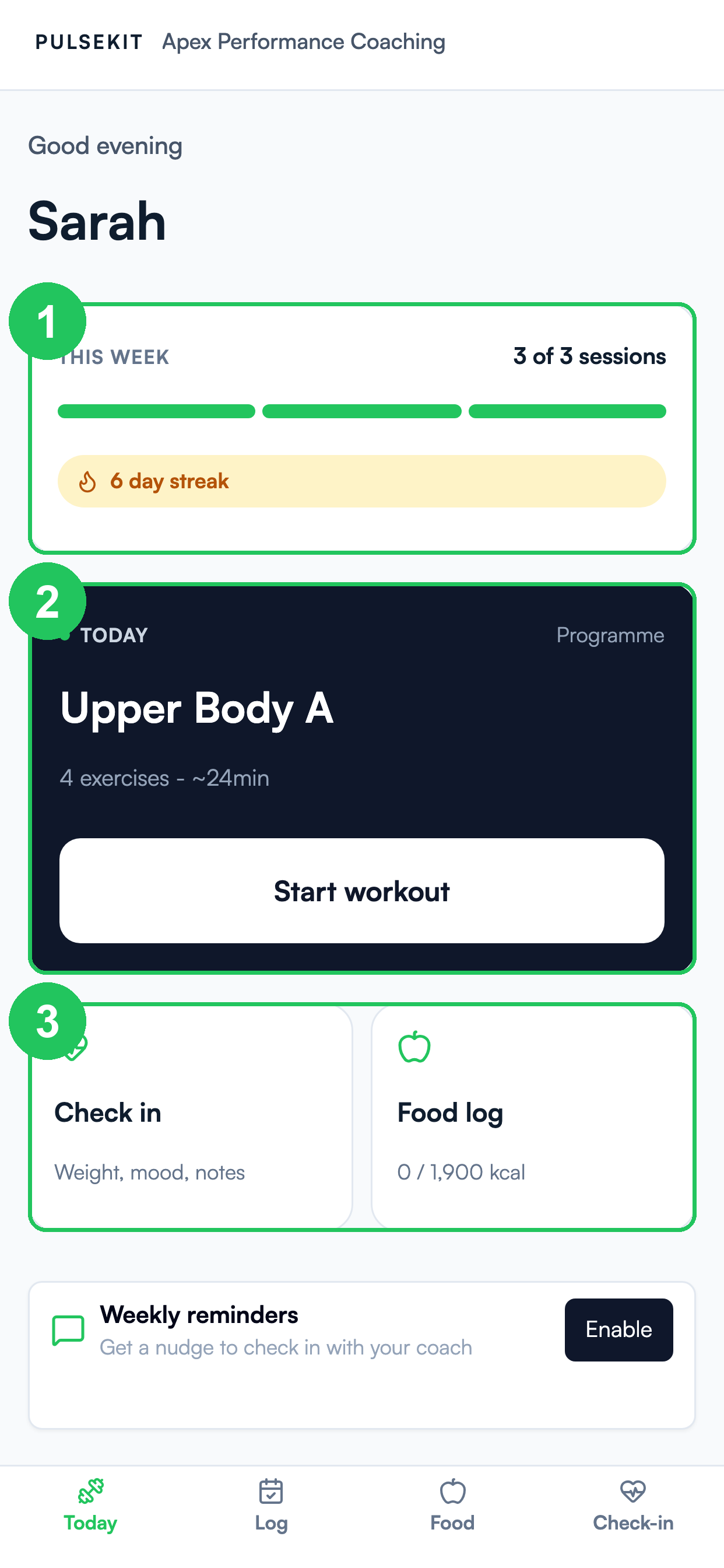
- This week - sessions completed against the plan, plus their current streak.
- Today's workout - the next session with a one-tap Start workout.
- Quick actions - jump straight to a check-in or the food log.
The bottom bar lets clients switch between Today, Habits, History, Food, and Check-in.
Your coach can rename these tabs to suit your programme. Each tab keeps its usual function.
Check-in progress
Open History to see graphs for custom Number and Scale answers from your check-ins. Choose a question and date range. View answers lists the values and dates. A question's earlier answers stay available if your coach renames or removes it. The graph shows the latest answer if you submit twice on the same day.
What clients can do
- See today's session and upcoming training.
- Read the session goals and notes before a workout, and watch the exercise video you added from the exercise detail.
- Mark exercises and habits as complete.
- Add an optional video link when they finish a workout, for a form check.
- Submit check-ins with up to four progress photos, if you show the photos question. Each photo is reduced to 100 KB or less before upload.
- Add food diary entries.
- Review targets and progress.
Group clients with no programme answer your configured self-assignment questions first, when that flow is ready. PulseKit then gives them a programme. See Group coaching.
Community check-in
If you add a community link in Settings, every client sees a Check in with community button on the Check-in tab. It opens your community in a new tab. It is separate from the private check-in form. Submitting that form does not post anything to the community. See Settings.
If your coach enables sharing, first submit your private check-in. PulseKit then asks Do you want to share this with your community? Select Choose what to share, or Not now to skip. You can reopen the choice with Share this check-in while that success screen remains open.
Choose the answers or workout summary you want to include. Every choice starts unchecked. Photos and video links stay private. Continue to review the destination, the name you will post as, and the exact title and text. You can edit the text before you tick the review box and select Publish my check-in. Nothing is published until you approve it. Reloading the app clears this optional prompt; it does not remove your private check-in.
You must already be a member of the selected community channel. You can share each check-in once, within seven days. If publication is still pending or cannot be confirmed, check the community or ask your coach before trying anything else. To change or remove a published post, use the community or ask your coach.
Sharing the client app
Open the client in PulseKit and use their client app link. Share that link with the client through your normal message channel.
What to tell clients
Tell clients to save the link somewhere easy to find. If they use it on a phone, they can bookmark it or add it to their home screen from their browser menu.
If a client cannot open their app
- Re-send their latest client app link.
- Check that they are opening the full link, not a shortened or copied part of it.
- If a home-screen shortcut asks for an admin password, ask them to delete the old shortcut. They must then open their latest full client app link in Safari and add it to the home screen again.
- Ask them to try a different browser if their current browser blocks the page.