Clients
The client list is your daily starting point. It helps you see who is active, who needs attention, and where to go next.
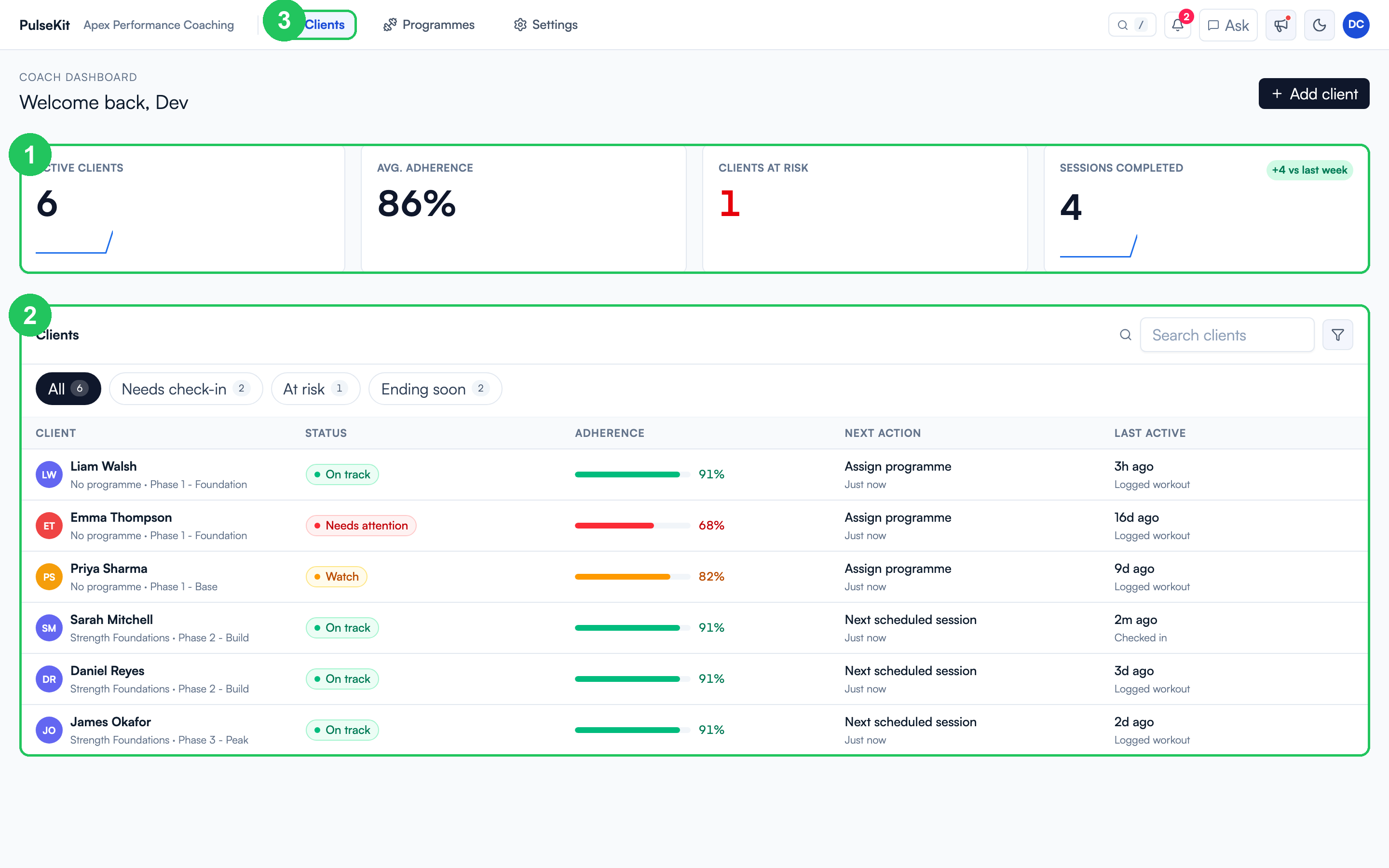
- Metric row - a quick read on active clients, average adherence, clients at risk, and sessions completed this week.
- Client table - each client shows their programme phase, status (On track, Watch, At risk), adherence bar, suggested next action, and last activity.
- Filters - tabs above the table narrow the list to Needs check-in, At risk, or Ending soon so you can triage quickly.
The filter button opens more options. Health status is On track, Watch, At Risk, or Overdue. Client type is 1:1, Group, or Challenge.
Reading a client row
Each row is built to answer "does this person need me today?" at a glance:
- Status uses colour: green is on track, amber is watch, red is at risk.
- Adherence shows the completion bar and percentage for their current block.
- Next action tells you the obvious step, for example assign a programme or review a scheduled session.
- Last active shows the most recent thing they did (logged a workout, submitted a check-in).
Open a client
- Select any client row to open their detail panel on the right.
- Use search or the filter tabs if the list is long.
- Review their plan, adherence, streak, and recent activity without leaving the list.
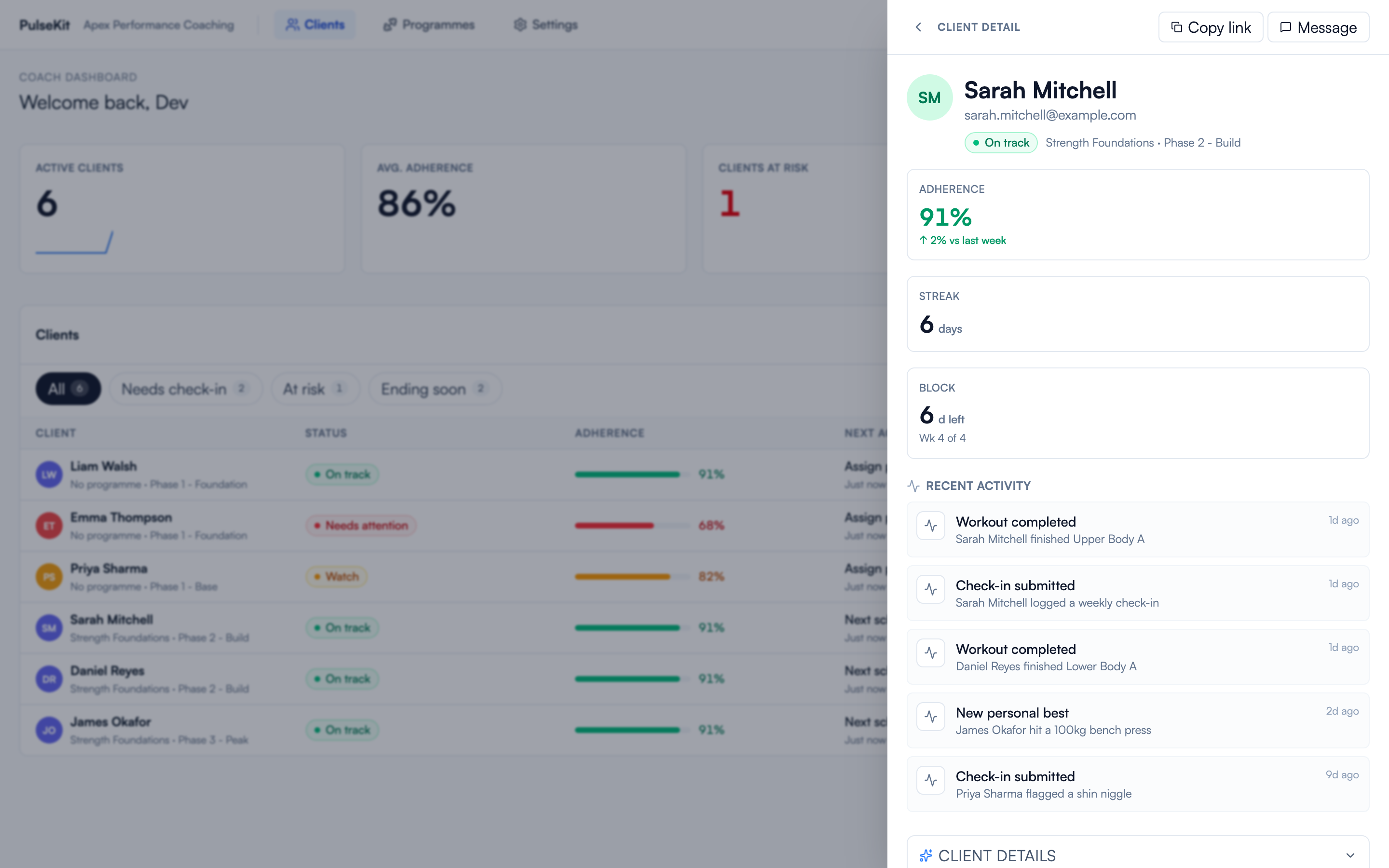
The detail panel shows the client's current programme and phase, adherence versus last week, their training streak, how far through the block they are, and a live feed of their recent workouts, check-ins, and personal bests. Use Copy link to grab their client app link or Message client to reach out.
Client tab names
Open a client, select Open full view, and go to the Workout logger preview. Double-click a tab name to edit it. You can also focus the tab and press F2. Select Save name, Cancel, or Reset name to use the original name.
Saved names apply to all your clients and appear when their app next loads. Names can contain up to 24 characters. Renaming a tab changes its wording; the tab keeps its usual function.
Check-in progress graphs
In the full client view, use the Progress chart question picker to choose a custom Number or Scale question. Choose 30, 90, 180 days or All. Clients can view the same scores on their History tab.
Graphs use submitted answers, including zero. They keep the history when a question is renamed or removed. If a client submits the same question twice on one day, the graph shows the latest answer. Unanswered questions do not become zero. Text and Yes / no answers stay in the check-in history.
Customise one client
Open a client and select Customise. Add optional Plan notes for standing guidance. Clients can open them from Today. Leave the notes blank to hide that shortcut.
The client uses your default check-in form until you save an individual version here. Edit the same question types as in Settings. Customised identifies an individual form. Reset to default form shows which extra questions will be removed before you confirm. Saved answers and progress graphs stay in their history.
Edit scheduled practices in the programme builder. Habits keep their existing controls below.
Habits
Add habits from the client's detail panel. Choose an icon with the emoji picker, which has a search. Set a daily target from 1 to 1,000,000, so step goals such as 10,000 work. Tick Reminder to send a reminder push on days the habit is due. Only clients with notifications on get it.
Archive and restore
Select Archive client to stop a client's app access. Their workouts, check-ins and history are kept, and their Pulse contact does not change. Archived clients are listed under Archived clients at the bottom of the client list. Select Restore to give access again. Demo clients are deleted, not archived.
What to check first
- Latest check-in status.
- Training completion.
- Food diary consistency.
- Recent notes or alerts.
- Whether their current programme still matches their goal.
Useful habits
- Start with clients flagged as needing attention.
- Leave short notes after meaningful changes.
- Check the client app link before sending it.
- Keep programme and food guidance up to date so clients always know what to do next.